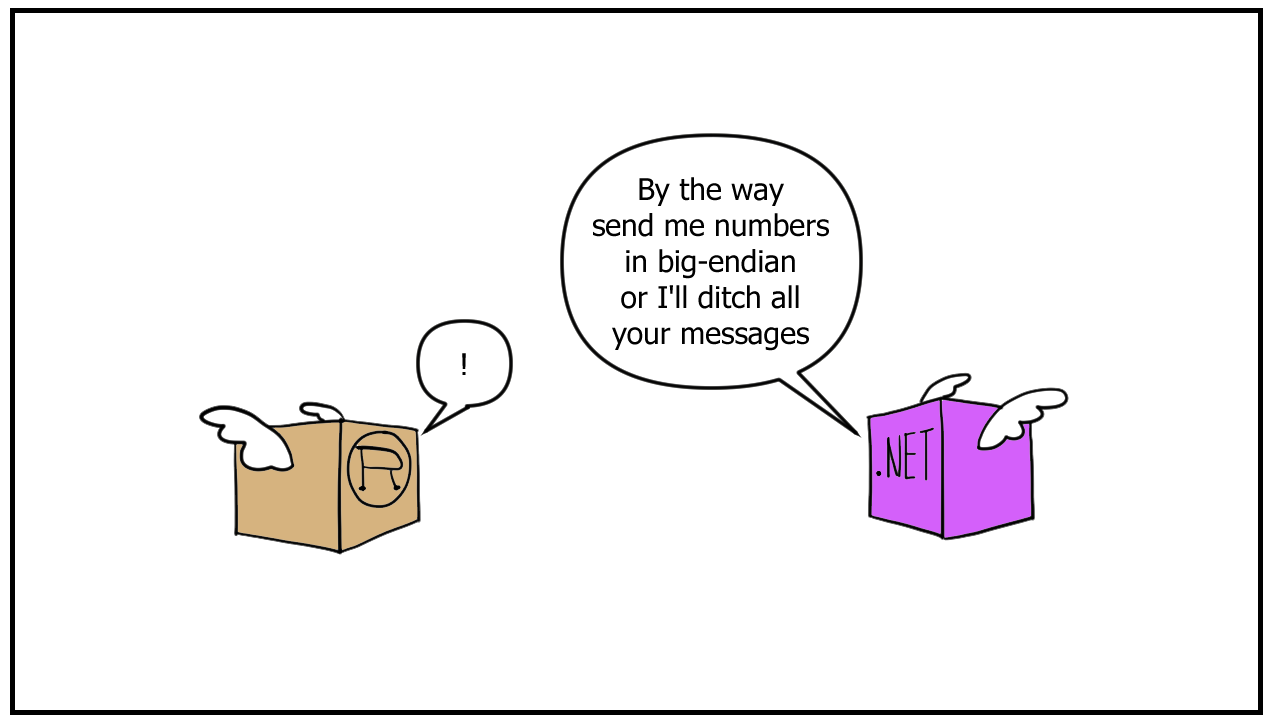
To enable communication between Rust and .NET applications when a web server isn't available, use Windows named pipes.
Named pipes are specifically designed for communication between unrelated applications, regardless of the programming languages involved.Let's start with the Rust side.
Creating the Rust project
I'm going to create a binary application to simulate a real application.
Run this:
cargo new rust_rings_dotnet
cd rust_rings_dotnet
Open the Cargo.toml file, and add this in the dependency section:
# Cargo.toml

# [...]

[dependencies]
tokio = { version = "1.48.0", features = ["macros", "rt-multi-thread", "net", "io-util", "time"] }
In the src folder, open the main.rs file and replace the existing code (if any) with this code:
// main.rs

use std::io;
use tokio::io::{AsyncReadExt, AsyncWriteExt};
use tokio::net::windows::named_pipe::{ClientOptions, NamedPipeClient};

#[tokio::main]
async fn main() -> io::Result<()> {
    connect_to_pipe().await;
    Ok(())
}

/// Connect to a server listening through a named pipe.
async fn connect_to_pipe() {
    // Define the full path to the named pipe
    let pipe_name = r"\\.\pipe\testpipe";

    // You have to set the impersonation level you want to use with named pipes in Windows.
    // Impersonation levels define what the server process can do on behalf of the client.
    // These are the impersonation levels that can be used:
    // SECURITY_ANONYMOUS=0u32;
    // SECURITY_IDENTIFICATION=65536u32;
    // SECURITY_IMPERSONATION=131072u32
    // SECURITY_DELEGATION=196608u32

    // A rule of thumb for impersonation levels is:
    // Use SECURITY_IMPERSONATION when staying on the same machine;
    // use SECURITY_DELEGATION when the user’s identity must travel across machines.

    const SECURITY_IMPERSONATION: u32 = 131072u32;

    // Attempt to connect to the named pipe
    match ClientOptions::new()
        .security_qos_flags(SECURITY_IMPERSONATION)
        .open(pipe_name)
    {
        Ok(mut pipe) => {
            println!("Successfully connected to the named pipe: {}", pipe_name);

            match read_string(&mut pipe).await {
                Ok(received_string) => {
                    println!("Received string from pipe: {}", received_string);
                }
                Err(e) => {
                    eprintln!("Failed to read from the pipe: {}", e);
                }
            }

            let message = String::from("C:\\DeploymentReport_4.txt");
            if let Err(e) = write_string(message, &mut pipe).await {
                eprintln!("Failed to write to the pipe: {}", e);
            } else {
                println!("Message sent to the pipe.");
            }

            match read_string(&mut pipe).await {
                Ok(received_string) => {
                    println!("Response received string from pipe: {}", received_string);
                }
                Err(e) => {
                    eprintln!("Failed to read from the pipe: {}", e);
                }
            }
        }
        Err(e) => {
            eprintln!("Failed to connect to the named pipe: {}", e);
        }
    }
}

/// Writes a string to the named pipe.
/// The first two bytes of the message have the length of the string.
async fn write_string(
    out_string: String,
    pipe: &mut NamedPipeClient,
) -> Result<i32, std::io::Error> {
    let bytes = out_string.as_bytes();
    let mut len = bytes.len();

    if len > u16::MAX as usize {
        len = u16::MAX as usize;
    }

    let _ = pipe.write_all(&(len as u16).to_be_bytes()).await;
    let _ = pipe.write_all(out_string.as_bytes()).await;

    Ok(bytes.len() as i32 + 2)
}

/// Reads a UTF8 string from the named pipe.
/// The first two bytes of the message have the length of the string.
async fn read_string(pipe: &mut NamedPipeClient) -> Result<String, std::io::Error> {
    let mut len_bytes = [0u8; 2];
    let _ = pipe.read_exact(&mut len_bytes).await;
    let len = u16::from_be_bytes(len_bytes);

    let mut buffer = vec![0; len as usize];
    let _ = pipe.read_exact(&mut buffer).await;

    Ok(String::from_utf8_lossy(&buffer).to_string())
}
The DeploymentReport_4.txt file is a made-up text file. You can point to your own file.
Build the project with:
cargo buildCreating the .NET project
I'm going to target the legacy .NET Framework rather than the new .NET because I want to demonstrate that the same code runs on both platforms.
- Open Visual Studio and create a project using the Console App (.NET Framework) template.
I'm going to use Visual Studio 2026, which is in preview at the time of this writing.
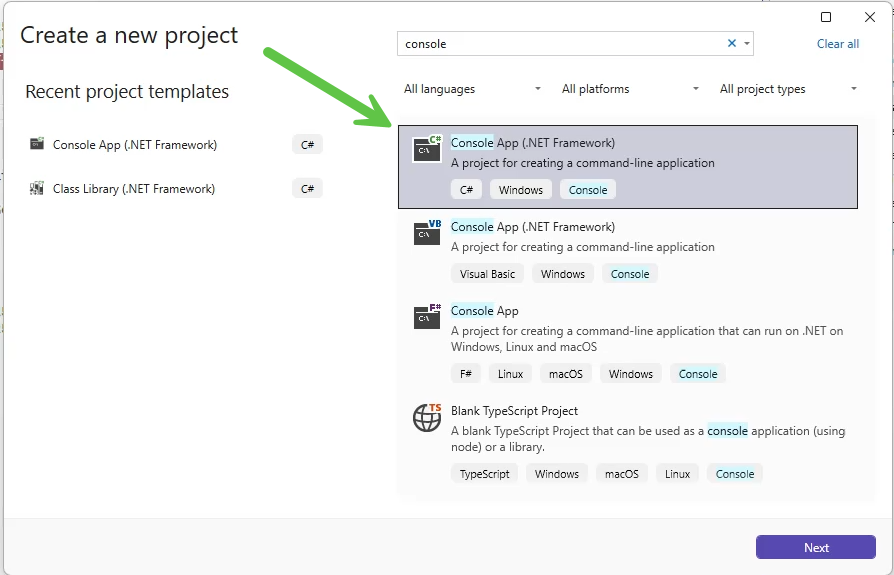
- Click Next.
- In the Configure your new project dialogue, type a project name and select .NET Framework 4.7.2 as the target framework.
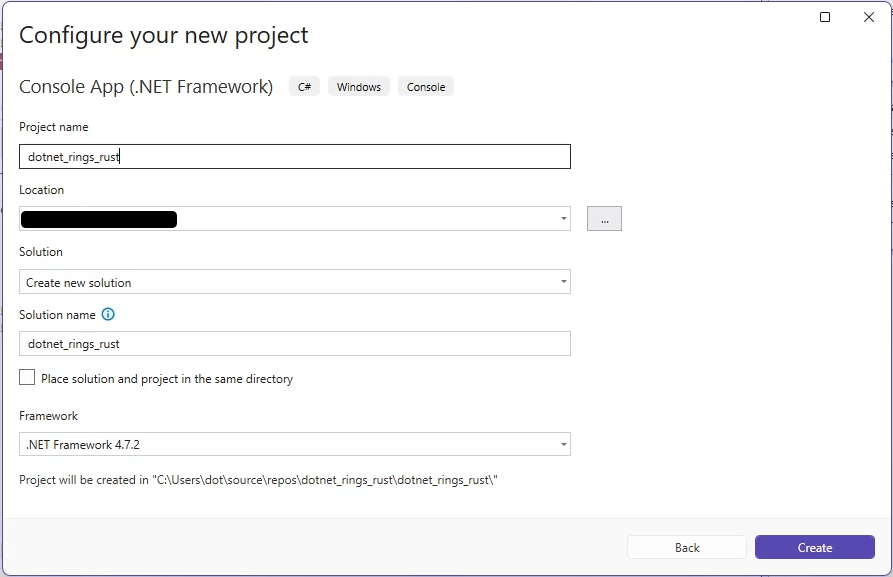
I target .NET Framework 4.7.2 because it's still supported and the default in Visual Studio 🙂, but that may change in the future.
I'll name my project: dotnet_rings_rust.
- Click Create.
I'll adapt the example from the .NET documentation for named pipes.
- Create a file called StreamString.cs and replace the code with this:
using System;
using System.IO;
using System.Text;

namespace dotnet_rings_rust
{
    public class StreamString
    {
        private readonly Stream ioStream;
        private readonly UnicodeEncoding streamEncoding;
        private readonly UTF8Encoding streamEncodingUTF8;

        public StreamString(Stream ioStream)
        {
            this.ioStream = ioStream;
            streamEncoding = new UnicodeEncoding(); // for .NET clients
        }

        public string ReadString()
        {
            int len = 0;

            len = ioStream.ReadByte() * 256;
            len += ioStream.ReadByte();

            byte[] inBuffer = new byte[len];
            ioStream.Read(inBuffer, 0, len);

            return streamEncoding.GetString(inBuffer);
        }

        public int WriteString(string outString)
        {
            byte[] outBuffer = streamEncoding.GetBytes(outString);
            int len = outBuffer.Length;

            // The maximum length of a message is 64KB (you can change this limit to suit your needs)
            if (len > UInt16.MaxValue)
            {
                len = (int)UInt16.MaxValue;
            }

            // Write the first two bytes length len variable is UInt16
            ioStream.WriteByte((byte)(len / 256));
            ioStream.WriteByte((byte)(len & 255));

            // Write the string itself
            ioStream.Write(outBuffer, 0, len);
            ioStream.Flush();

            return outBuffer.Length + 2;
        }
    }
}- Add the
ReadFileToStream.csfile and this code within it:
using System.IO;

namespace dotnet_rings_rust
{
    /// <summary>
    /// Reads the contents of a file and writes it to a StreamString
    /// </summary>
    public class ReadFileToStream
    {
        private readonly string fn;
        private readonly StreamString ss;

        public ReadFileToStream(StreamString str, string filename)
        {
            fn = filename;
            ss = str;
        }

        public void Read()
        {
            string contents = File.ReadAllText(fn);
            ss.WriteString(contents);
        }
    }
}- Create the
PipeServer.csfile, replace the code with the following:
using System;
using System.IO;
using System.IO.Pipes;
using System.Threading;

namespace dotnet_rings_rust
{
    public class PipeServer
    {
        public void Run(int instanceServersNumber)
        {
            NamedPipeServerStream pipeServer = new NamedPipeServerStream(
                "testpipe",
                PipeDirection.InOut,
                instanceServersNumber
                );

            int threadId = Thread.CurrentThread.ManagedThreadId;

            Console.WriteLine($"NamedPipeServerStream object created on thread[{threadId}].");

            // Wait for a client to connect
            pipeServer.WaitForConnection();

            Console.WriteLine($"Client connected on thread[{threadId}].");
            try
            {
                StreamString ss = new StreamString(pipeServer);

                // Verify our identity to the connected client using a
                // string that the client anticipates.

                ss.WriteString("I am the one true server!");
                string filename = ss.ReadString();
                Console.WriteLine("Received request for file: {0}", filename);

                // Read in the contents of the file while impersonating the client.
                ReadFileToStream fileReader = new ReadFileToStream(ss, filename);

                // Display the name of the user we are impersonating.
                Console.WriteLine("Reading file: {0} on thread[{1}] as user: {2}.",
                    filename, threadId, pipeServer.GetImpersonationUserName());

                pipeServer.RunAsClient(fileReader.Read);

                Console.WriteLine("File content sent to client");
            }
            // Catch the IOException that is raised if the pipe is broken
            // or disconnected.
            catch (IOException e)
            {
                Console.WriteLine($"ERROR: {e.Message}");
            }
            pipeServer.Close();
        }
    }
}
- Open the
Program.csfile, and modify theMainfunction like this:
namespace dotnet_rings_rust
{
    internal class Program
    {
        static void Main(string[] args)
        {
            PipeServer server = new PipeServer();
            server.Run(4);
        }
    }
}- Press Ctrl+B to compile the project, or go to the menu Build > Build dotnet_rings_rust.
Testing communication between Rust and .NET
Now, let's check if our Rust and .NET applications can communicate with each other.
Launch the Rust application with this command:
cargo run rust_rings_dotnetNext, launch the .NET application by hitting F5 in Visual Studio.
You'll see something magical 🤩...
Rust sends the wrong file name:
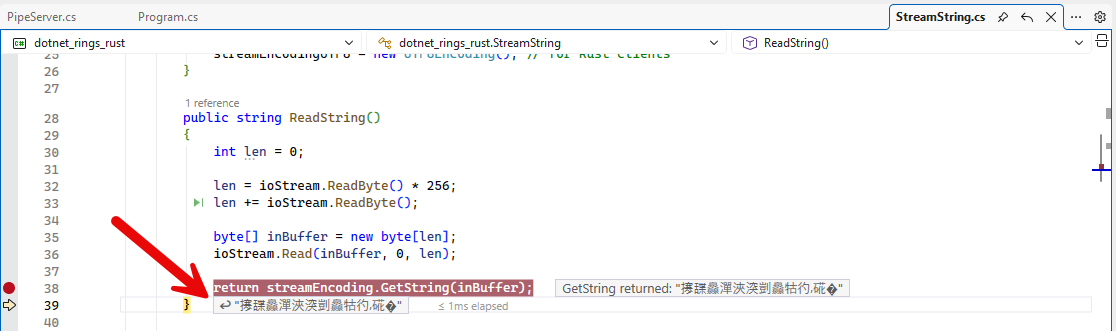
And, the .NET application throws an exception when trying to open the file!
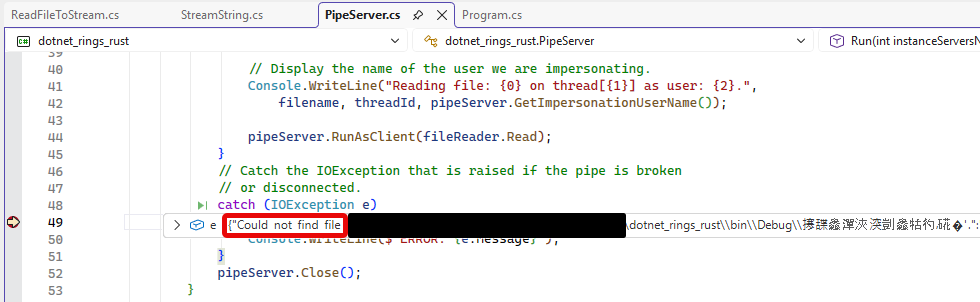
Could not find file ...\dotnet_rings_rust\bin\Debug\㩅摜屢楦敬屳敄汰祯敭瑮敒潰瑲㑟琮瑸'.
The reason: Rust encodes strings differently than .NET.Rust is sending this value as a file name (fn variable) to .NET:
㩃䑜灥潬浹湥剴灥牯彴⸴硴�I describe this quirk next.
Encoding of strings
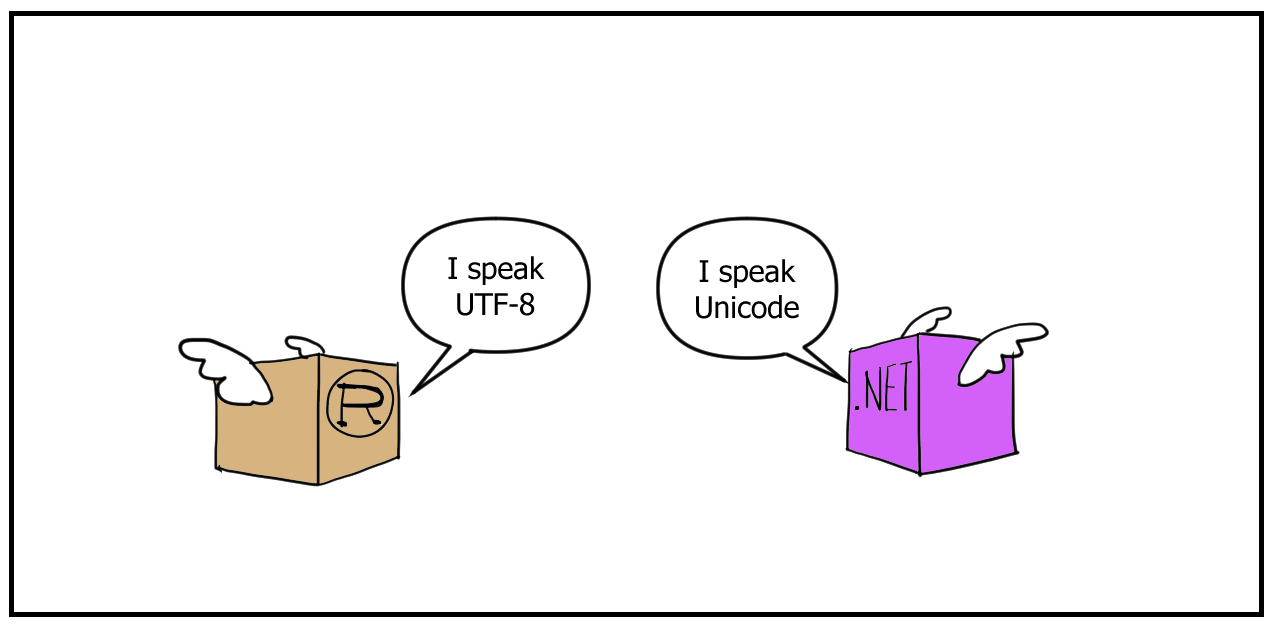
When you need to send string values between two applications, you have to ensure that they're using the same encoding.
String encoding refers to the conversion of strings in memory to bytes.
If you want to communicate with an application written in another language and you ignore how your application encodes strings, it's like trying to talk to someone who may not speak your language 😀.
Returning to Rust and .NET, this is how these languages encode strings:
- Rust uses UTF-8
- .NET uses Unicode
UTF-8 and Unicode are standards to convert characters to bytes and vice versa.
Resolving the encoding of strings

We can use either Unicode or UTF-8 to make the named pipes work.
I'll use UTF-8 because it uses fewer bytes, so the message size is smaller.
You could also choose Unicode if you prefer. What matters is that Rust and .NET agree on the same encoding standard.
Let's modify the .NET application.
- In the
StreamStringclass, add the methodsReadUTF8StringandWriteStringUTF8. Also, we'll need a variable for the encoderstreamEncodingUTF8.
// StreamString.cs

// [...]
{
    /// <summary>
    /// Provides methods for reading and writing length-prefixed strings to a stream using Unicode or UTF-8 encoding.
    /// </summary>
    /// <remarks>The StreamString class is designed to facilitate communication over streams by encoding
    /// strings with a two-byte length prefix, followed by the string data. This format enables interoperability between
    /// .NET and other platforms, such as Rust, by supporting both Unicode and UTF-8 encodings. The maximum supported
    /// string length is 65,535 bytes. Instances of StreamString are not thread-safe; concurrent access to the
    /// underlying stream should be synchronized externally.</remarks>
    public class StreamString
    {
        private readonly Stream ioStream;
        private readonly UnicodeEncoding streamEncoding;
        private readonly UTF8Encoding streamEncodingUTF8;

        public StreamString(Stream ioStream)
        {
            this.ioStream = ioStream;
            streamEncoding = new UnicodeEncoding(); // for .NET clients
            streamEncodingUTF8 = new UTF8Encoding(); // for Rust clients
        }

        public string ReadString()
        {
            int len = 0;

            len = ioStream.ReadByte() * 256;
            len += ioStream.ReadByte();

            byte[] inBuffer = new byte[len];
            ioStream.Read(inBuffer, 0, len);

            return streamEncoding.GetString(inBuffer);
        }

        public string ReadUTF8String()
        {
            int len = ioStream.ReadByte() * 256;
            len += ioStream.ReadByte();

            byte[] inBuffer = new byte[len];
            ioStream.Read(inBuffer, 0, len);

            return streamEncodingUTF8.GetString(inBuffer);
        }

        public int WriteString(string outString)
        {
            byte[] outBuffer = streamEncoding.GetBytes(outString);
            int len = outBuffer.Length;

            // The maximum length of a message is 64KB (you can change this limit to suit your needs)
            if (len > UInt16.MaxValue)
            {
                len = (int)UInt16.MaxValue;
            }

            // Write the length in the first two bytes because the len variable is UInt16
            ioStream.WriteByte((byte)(len / 256));
            ioStream.WriteByte((byte)(len & 255));

            // Write the string itself
            ioStream.Write(outBuffer, 0, len);
            ioStream.Flush();

            return outBuffer.Length + 2;
        }

        public int WriteUTF8String(string outString)
        {
            byte[] outBuffer = streamEncodingUTF8.GetBytes(outString);
            int len = outBuffer.Length;

            // The maximum length of a message is 64KB (you can change this limit to suit your needs)
            if (len > UInt16.MaxValue)
            {
                len = (int)UInt16.MaxValue;
            }

            // Write the length in the first two bytes because the len variable is UInt16
            ioStream.WriteByte((byte)(len / 256));
            ioStream.WriteByte((byte)(len & 255));

            // Write the string itself
            ioStream.Write(outBuffer, 0, len);
            ioStream.Flush();

            return outBuffer.Length + 2;
        }
    }
}- Add the
ReadUTF8Stringmethod to theReadFileToStreamclass.
// ReadFileToStream.cs

// [...]
{
    /// <summary>
    /// Reads the contents of a file and writes it to a StreamString.
    /// </summary>
    public class ReadFileToStream
    {
        private readonly string fn;
        private readonly StreamString ss;

        public ReadFileToStream(StreamString str, string filename)
        {
            fn = filename;
            ss = str;
        }

        public void Read()
        {
            string contents = File.ReadAllText(fn);
            ss.WriteString(contents);
        }

        public void ReadAsUTF8()
        {
            string contents = File.ReadAllText(fn);
            ss.WriteUTF8String(contents);
        }
    }
}- In the
PipeServerclass, add theRunForUTF8method.
// PipeServer.cs

// [...]

        public void RunForUTF8(int instanceServersNumber)
        {
            NamedPipeServerStream pipeServer = new NamedPipeServerStream(
                "testpipe",
                PipeDirection.InOut,
                instanceServersNumber
                );

            int threadId = Thread.CurrentThread.ManagedThreadId;

            Console.WriteLine($"NamedPipeServerStream object created on thread[{threadId}].");

            // Wait for a client to connect
            pipeServer.WaitForConnection();

            Console.WriteLine($"Client connected on thread[{threadId}].");
            try
            {
                StreamString ss = new StreamString(pipeServer);

                // Verify our identity to the connected client using a
                // string that the client anticipates.

                ss.WriteUTF8String("I am the one true server!");
                string filename = ss.ReadUTF8String();
                Console.WriteLine("Received request for file: {0}", filename);

                // Read in the contents of the file while impersonating the client.
                ReadFileToStream fileReader = new ReadFileToStream(ss, filename);

                // Display the name of the user we are impersonating.
                Console.WriteLine("Reading file: {0} on thread[{1}] as user: {2}.",
                    filename, threadId, pipeServer.GetImpersonationUserName());

                pipeServer.RunAsClient(fileReader.ReadAsUTF8);

                Console.WriteLine("File content sent to client");
            }
            // Catch the IOException that is raised if the pipe is broken
            // or disconnected.
            catch (IOException e)
            {
                Console.WriteLine($"ERROR: {e.Message}");
            }
            pipeServer.Close();
}- Finally, modify the
Programclass to call the methodRunForUTF8:
// Program.cs

// [...]
{
    internal class Program
    {
        static void Main(string[] args)
        {
            PipeServer server = new PipeServer();
            //server.Run(4);// accepts Unicode strings only
            server.RunForUTF8(4); // accepts UTF8 strings only
        }
    }
}- Press F5 to execute the .NET project.
- Run the Rust application with
cargo run.
Now, Rust sends the correct file name:
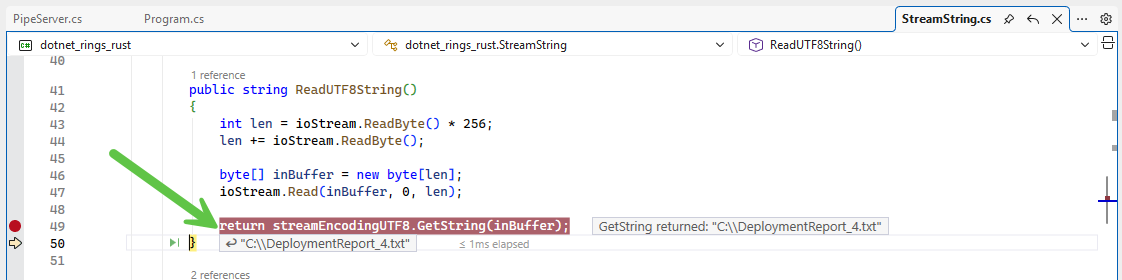
This is the output from the .NET side:
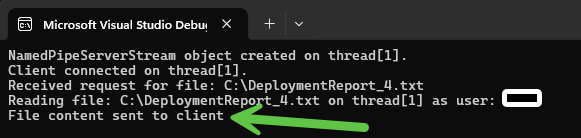
And this is the output from the Rust side:
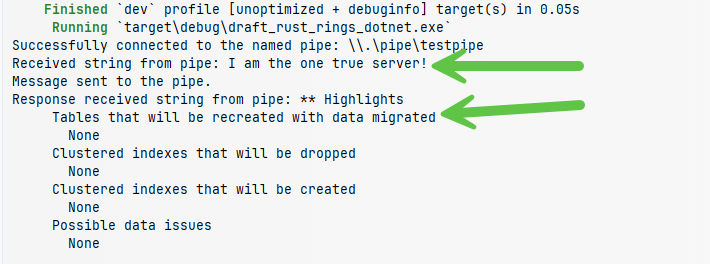
Rust and .NET can communicate seamlessly! 🥳
Summary
- Bridging a Rust and a .NET application is possible with named pipes.
- Ensure that Rust and .NET agree on the encoding used for string values.
- You can also make Rust use Unicode when communicating with .NET.
And yes, there is a lot of code duplication, but I want you to have a glimpse of the differences in how to communicate with an application that speaks Unicode and another that speaks UTF-8.
You can download the completed project next.